
Delta Dental Claim Adjustments and Disputes Guide
This file provides step-by-step instructions on how to navigate claim adjustments and disputes using Delta Dental's Provider Tools. By following these instructions, users can efficiently manage their claims and track their status in real time. This guide is essential for providers looking for streamlined ways to handle claim issues.
Edit, Download, and Sign the Delta Dental Claim Adjustments and Disputes Guide
Form
eSign
Add Annotation
Share Form
How do I fill this out?
To fill out this form, start by logging into your Provider Tools account. Next, locate the claim you wish to adjust or dispute, and follow the provided prompts. These steps will guide you through the necessary procedures efficiently.
How to fill out the Delta Dental Claim Adjustments and Disputes Guide?
1
Log into your Provider Tools account.
2
Navigate to 'My claims' and find the processed claim you wish to adjust.
3
Click on the claim ID and submit a request for adjustment.
4
Wait for the decision, which will be provided within 30 days.
5
If necessary, use the dispute dashboard to submit a claim dispute.
Who needs the Delta Dental Claim Adjustments and Disputes Guide?
1
Dentists who need to adjust claim details.
2
Healthcare providers dealing with denied claims.
3
Administrative staff responsible for handling claim disputes.
4
Patients seeking to correct their claim information.
5
Billing departments needing to ensure accurate claim processing.
How PrintFriendly Works
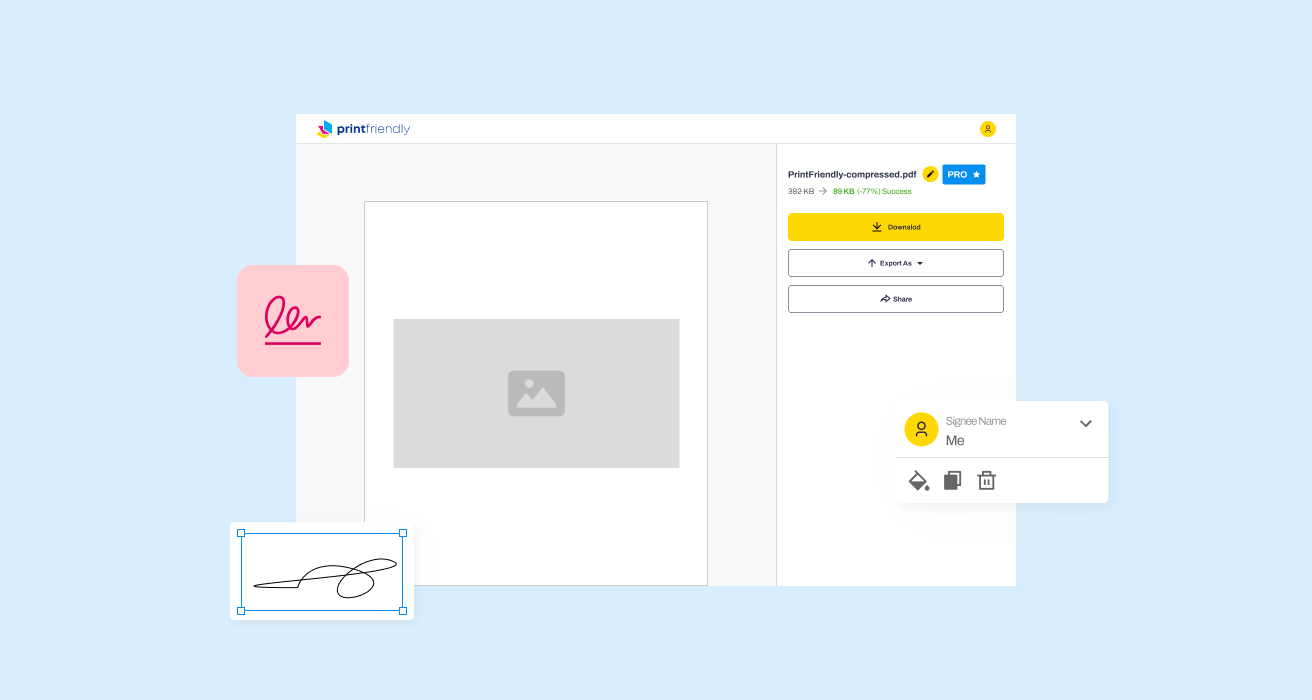
At PrintFriendly.com, you can edit, sign, share, and download the Delta Dental Claim Adjustments and Disputes Guide along with hundreds of thousands of other documents. Our platform helps you seamlessly edit PDFs and other documents online. You can edit our large library of pre-existing files and upload your own documents. Managing PDFs has never been easier.
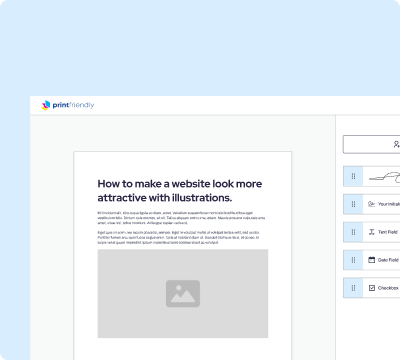
Edit your Delta Dental Claim Adjustments and Disputes Guide online.
With PrintFriendly, you can easily edit PDFs using our advanced tools. Simply upload your PDF, make the necessary changes, and save your edited document. PrintFriendly makes it simple to update and modify PDFs within our platform.
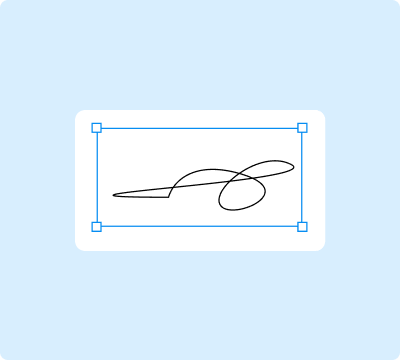
Add your legally-binding signature.
PrintFriendly allows you to sign PDFs online effortlessly. Upload your PDF, apply your signature using our e-signature tool, and save the signed document to your device. This feature ensures that your documents are signed quickly and securely.
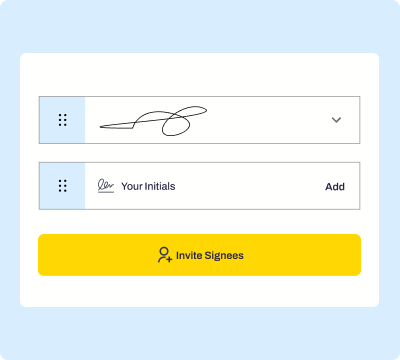
Share your form instantly.
Sharing PDFs on PrintFriendly is straightforward. After editing your document, click on the share button, and choose your preferred method. You can share via email, link, or directly to your favorite cloud storage services.
How do I edit the Delta Dental Claim Adjustments and Disputes Guide online?
With PrintFriendly, you can easily edit PDFs using our advanced tools. Simply upload your PDF, make the necessary changes, and save your edited document. PrintFriendly makes it simple to update and modify PDFs within our platform.
1
Open PrintFriendly and upload your PDF file.
2
Click on the edit button to access editing tools.
3
Make the necessary adjustments to your document.
4
Save your edited PDF to your device.
5
Share or print your updated document as needed.

What are the instructions for submitting this form?
To submit this form, log into your Provider Tools account and navigate to 'My claims'. Locate the processed claim you wish to adjust, click on the claim ID, and follow the prompts to submit a request. For disputes, ensure claims are resubmitted before filing a formal dispute using the dispute dashboard. You can also track the status of your submissions in real time. For assistance, contact customer support at claimsupport@deltadental.com or fax at (123) 456-7890.
What are the important dates for this form in 2024 and 2025?
There are no specific important dates for submitting this form in 2024 and 2025. Ensure that your claim adjustments are submitted within 90 days of the original claim date, and disputes are filed after a resubmission has been processed.

What is the purpose of this form?
The purpose of this form is to guide providers through the process of adjusting and disputing claims with Delta Dental. It aims to streamline the management of claim issues, ensuring timely and accurate processing. By following this form, providers can efficiently handle claim adjustments and disputes, ultimately enhancing their administrative workflows.

Tell me about this form and its components and fields line-by-line.

- 1. Claim ID: Unique identifier for the processed claim.
- 2. Enrollee ID: Identifier for the enrollee to whom the claim belongs.
- 3. Enrollee Name: Full name of the enrollee associated with the claim.
- 4. Relationship: Relationship of the enrollee to the patient.
- 5. Patient Name: Full name of the patient receiving the service.
- 6. Patient Date of Birth: Date of birth of the patient.
- 7. Billing Provider Data: Information about the provider submitting the claim.
- 8. Rendering Provider Data: Details about the provider rendering the service.
- 9. Provider Status: Current status of the provider.
- 10. Claim Record: Details of the claim record including status and deductible.
- 11. Procedures: List of procedures involved in the claim.
- 12. Explanation Code: Code providing an explanation for the claim.
- 13. Date of Service: Date the service was performed.
- 14. Patient Pays: Amount to be paid by the patient.
What happens if I fail to submit this form?
If you fail to submit this form, your claim adjustments or disputes may not be processed. This can lead to unresolved claim issues and potential financial discrepancies.
- Unresolved Adjustments: Failure to submit adjustments can leave claim issues unresolved.
- Financial Discrepancies: Inaccurate claims may lead to financial discrepancies in your records.
- Delayed Resolutions: Not submitting disputes can result in delayed resolution of claim issues.
How do I know when to use this form?

- 1. Claim Adjustments: Submit this form to request adjustments for processed claims.
- 2. Claim Disputes: Use this form to formally dispute a claim decision after resubmission.
- 3. Enrollment Corrections: Correct enrollee information associated with a claim.
- 4. Procedure Updates: Update details about procedures included in the claim.
- 5. Billing Inquiries: Address billing issues related to claim processing.
Frequently Asked Questions
How do I edit a PDF on PrintFriendly?
Upload your PDF to PrintFriendly, use the editing tools to make changes, and save the updated document.
Can I sign a PDF using PrintFriendly?
Yes, you can use our e-signature tool to sign your PDF documents online.
How do I submit a claim adjustment?
Log into your Provider Tools account, find the claim you want to adjust, and follow the prompts to submit your request.
What is the processing time for claim adjustments?
The adjustment review process may take up to 30 calendar days.
Can I dispute a claim adjustment decision?
Yes, you can use the dispute dashboard to submit a formal dispute if the adjustment doesn't resolve your issue.
How do I check the status of my claim adjustments?
You can track the status of your claim adjustments in real time through your Provider Tools account.
What information do I need to provide for a claim adjustment?
Ensure you have the claim ID, patient details, and specific information about the adjustment you are requesting.
Is there a time limit for submitting claim adjustments?
Yes, adjustments can be submitted for claims made within the past 90 days.
How do I access the dispute dashboard?
Navigate to 'My claims,' select 'Dispute the Decision,' and complete a Provider Inquiry form.
Can I filter disputes by provider or service date?
Yes, the dispute dashboard allows you to filter by provider and service date to manage your disputes efficiently.
Related Documents - Claim Adjustments Guide
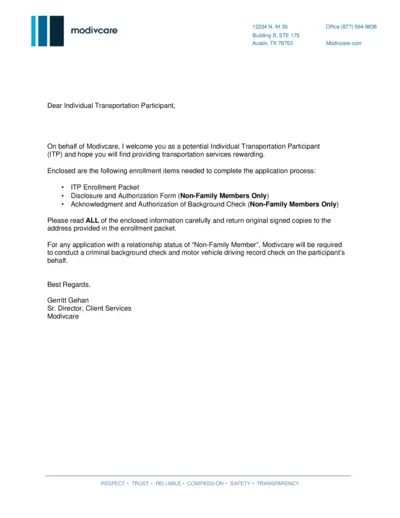
ModivCare Individual Transportation Participant Enrollment
This file contains the necessary steps and documents required for enrolling as an Individual Transportation Participant (ITP) with ModivCare. It includes the enrollment packet, forms, and instructions for submission. Follow the detailed guidance to complete and submit the application.
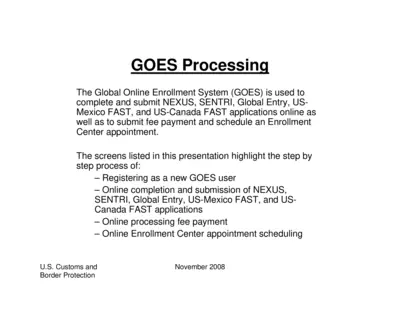
Global Online Enrollment System (GOES) Application Instructions
This file provides step-by-step instructions for registering as a new user, completing and submitting various applications, making payments, and scheduling appointments through the Global Online Enrollment System (GOES). It guides users on how to enter, certify, and edit their information within the GOES platform. The document is published by U.S. Customs and Border Protection.
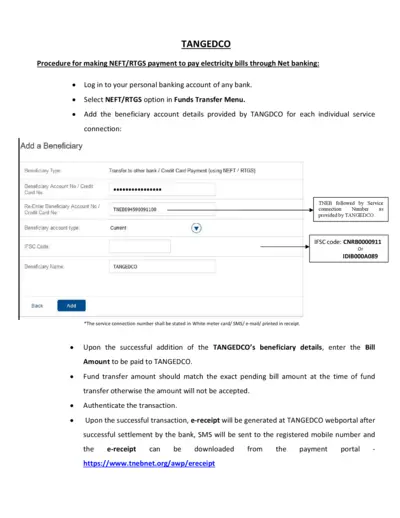
TANGEDCO NEFT RTGS Payment Procedure
This file provides detailed instructions on how to pay your electricity bills using NEFT/RTGS through net banking. It includes FAQs for easy reference. Stay informed about the billing process and ensure your payments are made correctly.
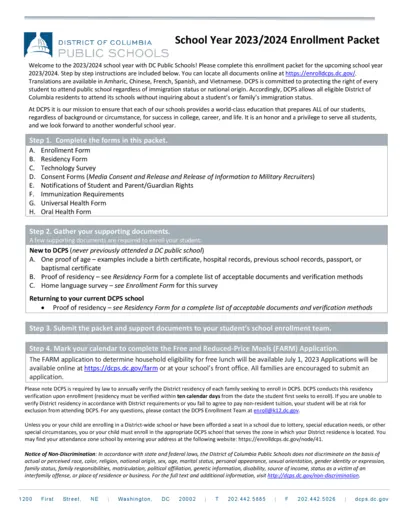
DC Public Schools 2023/2024 Enrollment Packet
This packet provides essential information for enrolling students in DC Public Schools for the 2023/2024 school year. It includes forms, instructions, and requirements. Ensure you follow the steps for a smooth enrollment process.
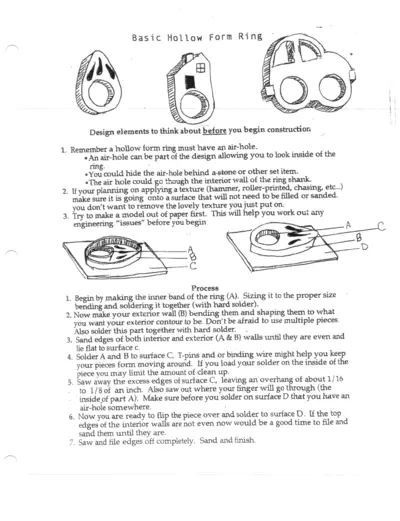
Basic Hollow Form Ring Construction Guide
This file serves as a detailed guide for constructing a hollow form ring. It includes design elements, step-by-step processes, and important tips. Perfect for jewelry makers looking to enhance their skills.
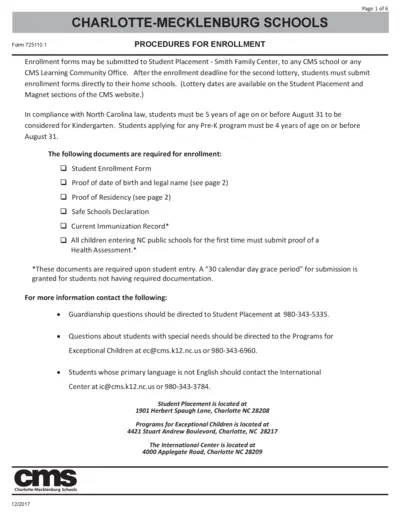
Charlotte-Mecklenburg Schools Enrollment Procedures
This file provides detailed enrollment procedures for students enrolling in Charlotte-Mecklenburg Schools. It outlines requirements for submission of documentation and useful contact information. An essential guide for parents and guardians navigating the enrollment process.
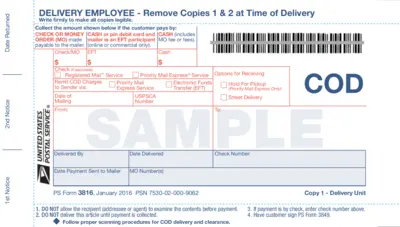
COD Payment Instructions and Receipt
This file provides instructions for collecting Cash on Delivery (COD) payment. It includes details on how to process the payment and necessary forms. Users will find helpful tips for ensuring smooth transactions using this document.
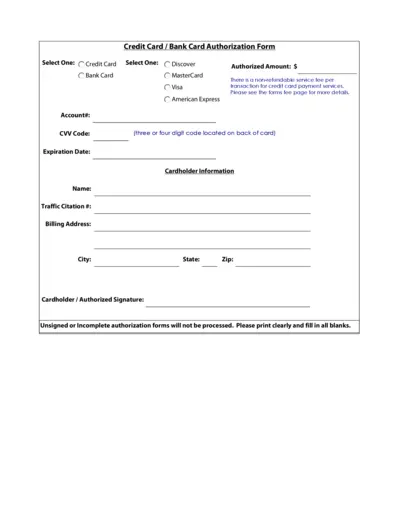
Credit Card Bank Card Authorization Form Instructions
This document provides essential instructions for filling out the Credit Card/Bank Card Authorization Form. Ensure all sections are completed accurately to facilitate processing. This form is necessary for payment processing and authorization.
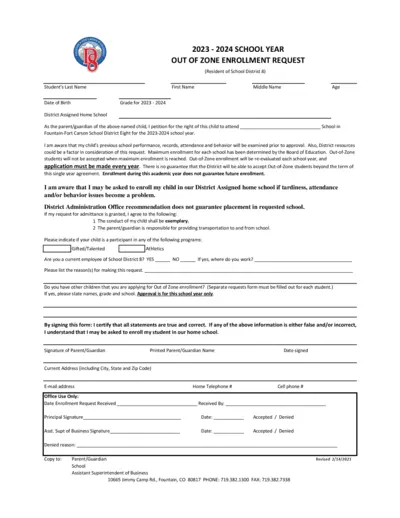
Out of Zone Enrollment Request Form 2023 2024
This file contains the Out of Zone Enrollment Request for the Fountain-Fort Carson School District for the 2023-2024 academic year. Parents seeking to enroll their child outside their assigned school can find complete instructions and requirements within. Submitting this form does not guarantee enrollment, and it must be completed annually.
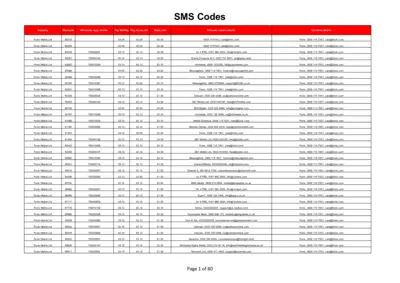
Mobile Payment Instructions and Codes Overview
This document provides a comprehensive overview of mobile payment instructions and associated shortcode details. It includes important SMS codes and contact information for various providers. Ideal for individuals and businesses needing to understand mobile payment processes.
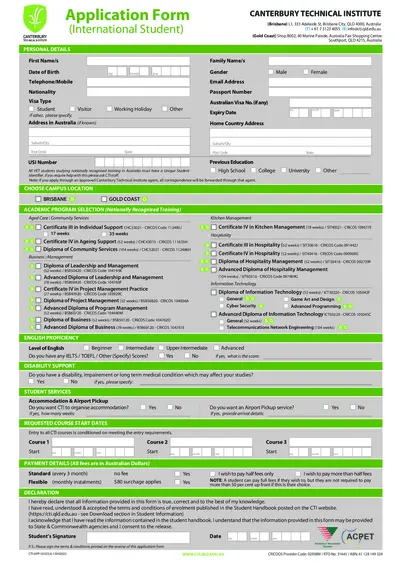
Canterbury Technical Institute International Student Application
This file serves as the application form for international students looking to enroll at Canterbury Technical Institute. It contains personal details, academic program selections, and payment information. Completing this form accurately is essential for a successful enrollment process.
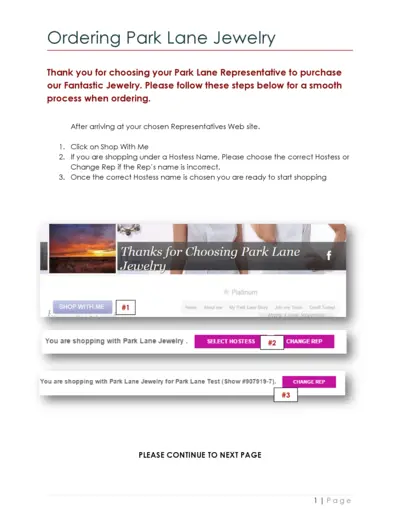
Ordering Instructions for Park Lane Jewelry
This file provides detailed instructions on how to order from Park Lane Jewelry. It outlines the process for selecting a representative and adding items to your shopping bag. Follow the guidelines to enjoy a smooth purchasing experience.